Launch Your SaaS This Weekend with Codapult
A step-by-step path to a working SaaS product in two days: auth, Stripe checkout, a dashboard, and a live deployment on Vercel.
Launch Your SaaS This Weekend with Codapult
Most boilerplate guides assume you want to explore every feature before you ship anything. This one doesn't. Here's a two-day path to a real, deployed product: working auth, a Stripe checkout that charges real cards, a dashboard your first customer can log into, and a live URL you can send to someone.
Day One: Local Setup
Morning: Get It Running
npx create-codapult my-app
cd my-app
pnpm install
This scaffolds a fresh Codapult project with every module included. You'll trim it down in a bit — for now, just get it installed.
Copy the env file and fill in the three things you actually need to start:
cp .env.example .env.localTURSO_DATABASE_URL="file:local.db"
BETTER_AUTH_SECRET="$(openssl rand -base64 32)"
STRIPE_SECRET_KEY="sk_test_..."file:local.db gives you a local SQLite file, so there's no external database to set up yet. BETTER_AUTH_SECRET needs to be at least 32 characters — the openssl command above takes care of that. STRIPE_SECRET_KEY comes from your Stripe dashboard; grab a test key for now, you'll swap it for a live one on day two.
Push the schema, seed some data, and start the dev server:
pnpm db:push
pnpm db:seed
pnpm dev
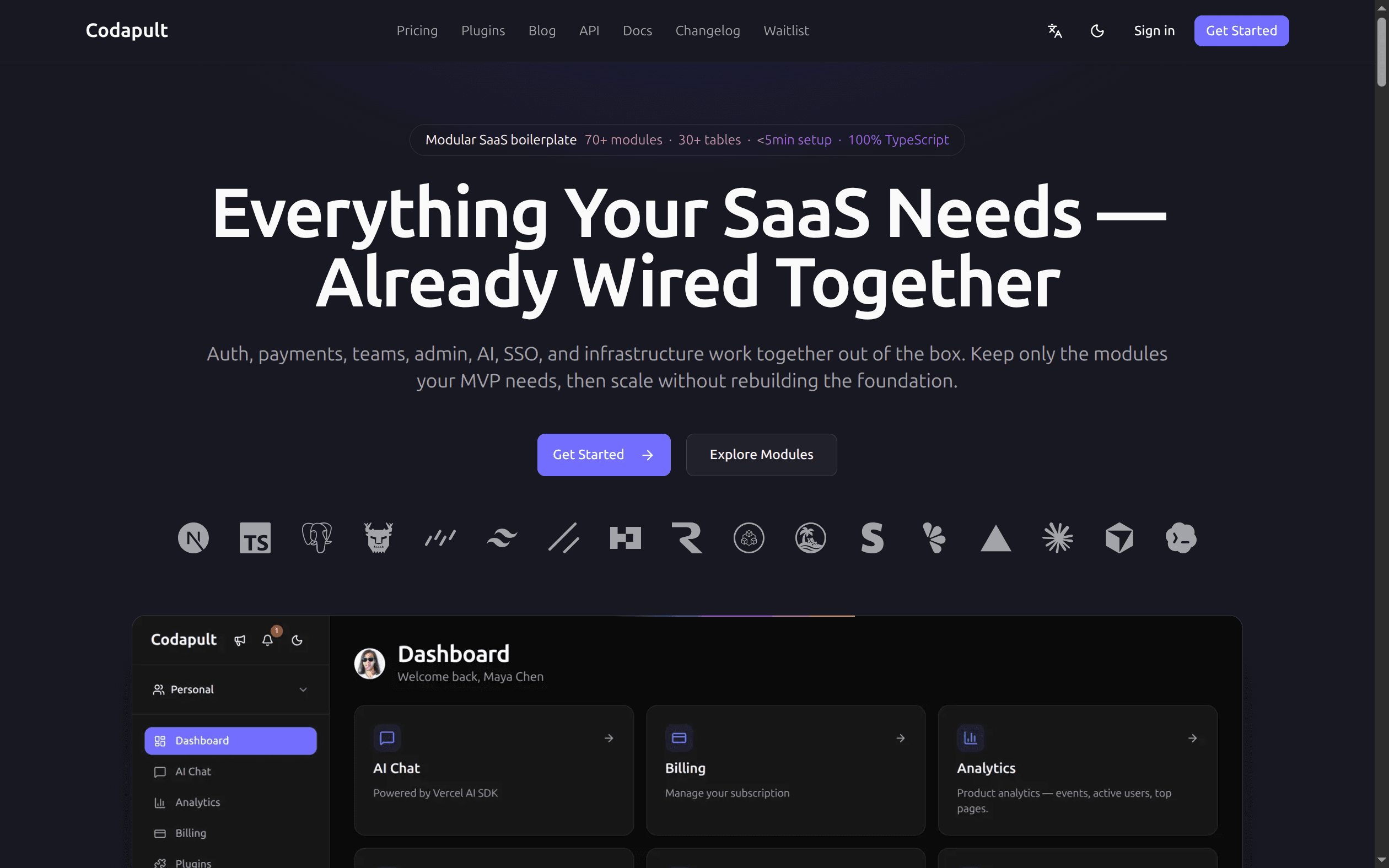
db:push creates every table in one shot. db:seed drops in sample data, including a test user you can sign in with right away. Open localhost:3000 and you should see the Codapult landing page looking back at you.
Afternoon: Decide What You're Actually Building
This is the part people skip, and it's the part that matters most.
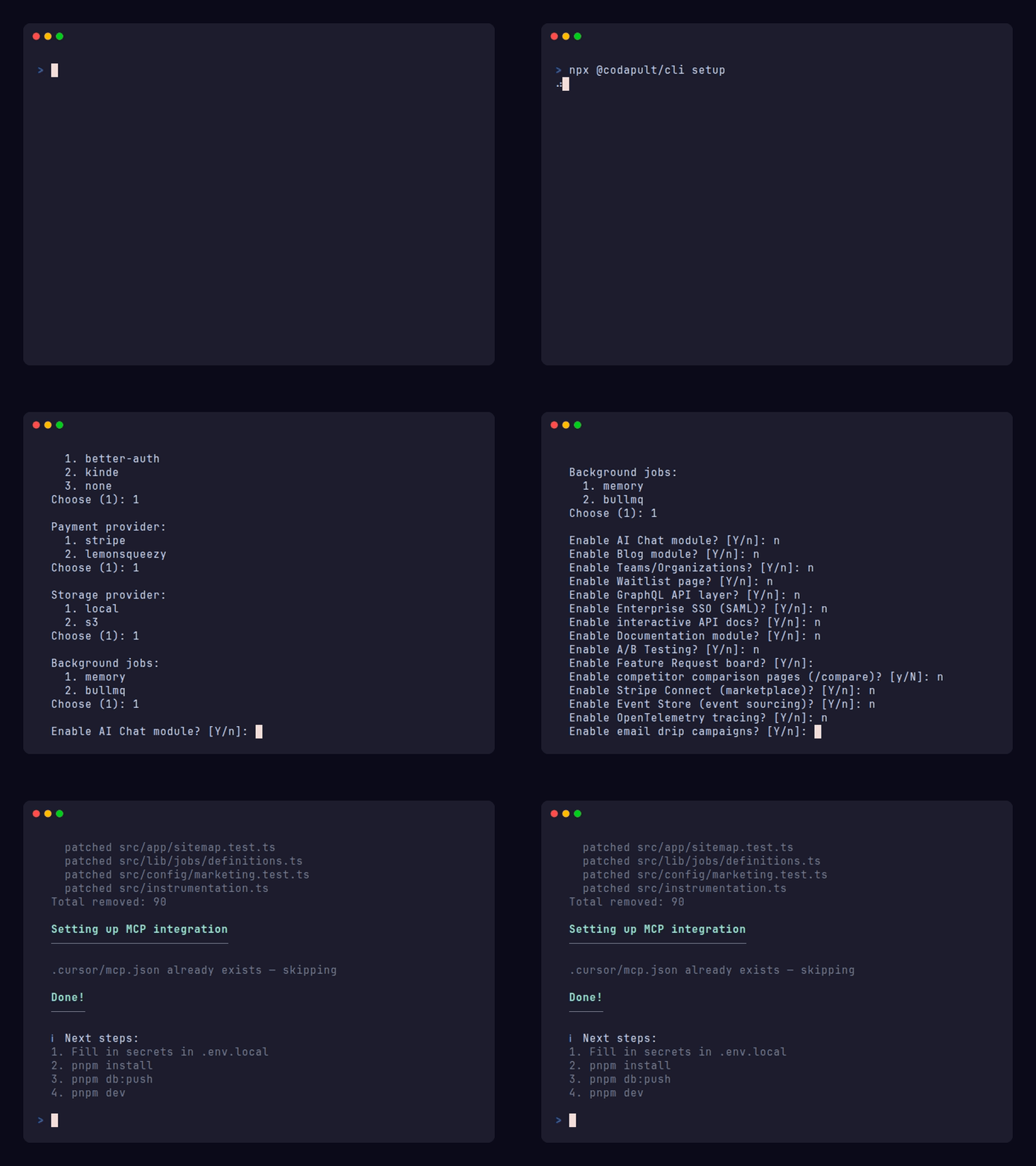
npx @codapult/cli setupThe wizard walks through every optional module — AI chat, blog, teams, notifications, and the rest — and lets you strip out whatever you don't need. Take it seriously: this step is permanent. Removed modules are deleted from the codebase, not hidden — routes, components, schema tables, imports, gone. If you want one back six months from now, you're pulling it from the source repo by hand, not re-running the wizard.
So if you're not sure, don't remove it. Keep it and flip it off instead via environment variables:
ENABLE_AI_CORE="false"
ENABLE_AI_CHAT="false"
ENABLE_TEAMS="false"
...
That's reversible. The wizard isn't.
For a weekend build, here's a reasonable cut: keep auth, payments, and the dashboard. Defer teams, SSO, and AI chat until a real customer actually asks for them.
Evening: Auth
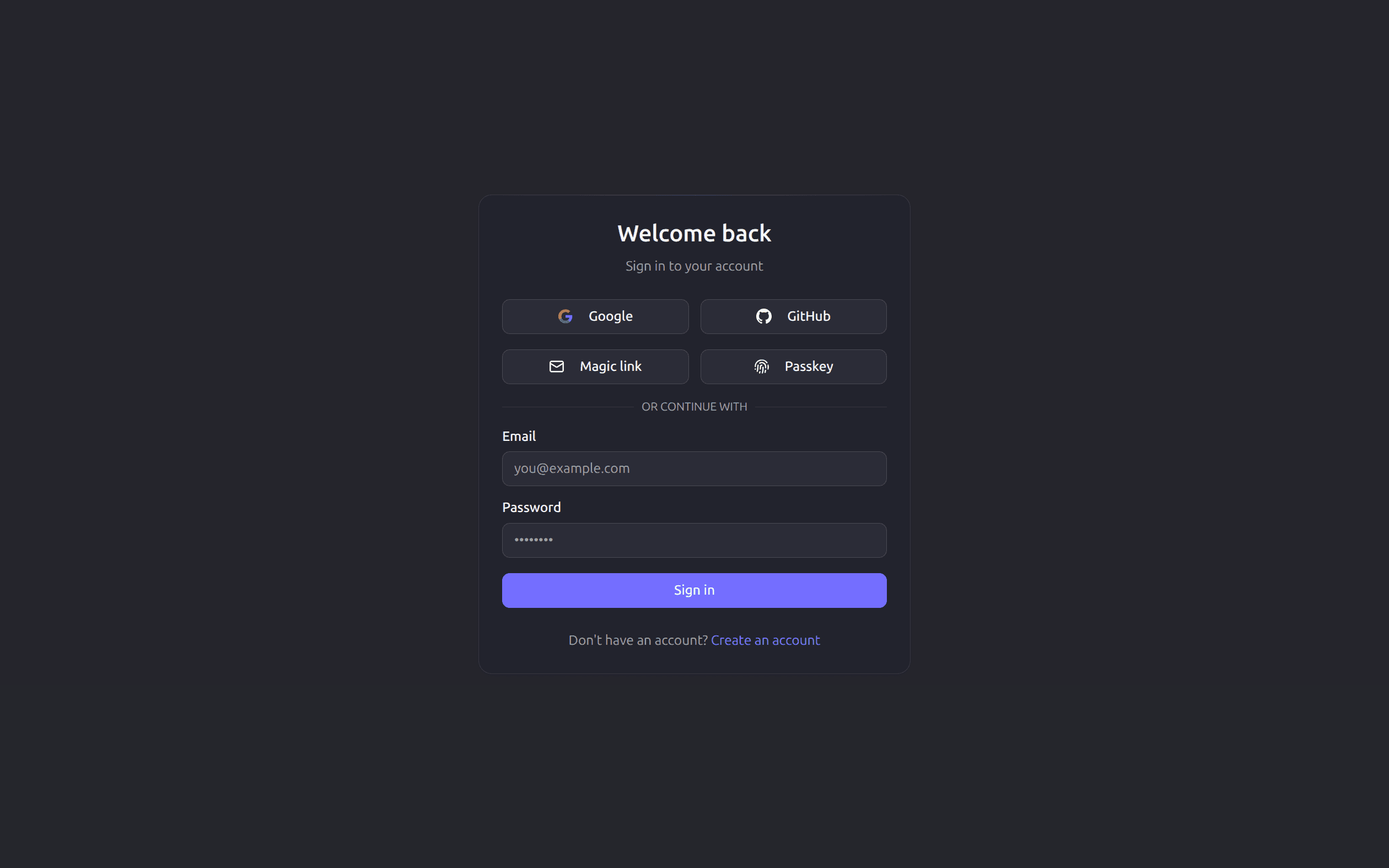
Better-Auth is the default — you get it by leaving AUTH_PROVIDER unset, or by setting AUTH_PROVIDER="better-auth" explicitly if you want it spelled out. Which sign-in methods show up is controlled by environment variables.
AUTH_MAGIC_LINK="true"
AUTH_PASSKEYS="true"
GOOGLE_CLIENT_ID="..."
GOOGLE_CLIENT_SECRET="..."
GITHUB_CLIENT_ID="..."
GITHUB_CLIENT_SECRET="..."
Turn on whatever fits your product. For a weekend MVP, email/password plus one OAuth provider is usually enough — you can always add more later without touching the auth logic itself.
Sign up, sign in, confirm you land on the dashboard. That's the whole test. If it works, you're done for the day.
Day Two: Payments and Deploy
Morning: Wire Up Stripe
Before touching any config, create one product and one price in the Stripe dashboard. Then forward webhook events to your local server with the Stripe CLI:
stripe listen --forward-to http://localhost:3000/api/webhooks/stripeIt'll print a signing secret starting with whsec_ — copy that into STRIPE_WEBHOOK_SECRET in .env.local.
The webhook handler listens for four events:
| Stripe Event | What Happens |
|---|---|
checkout.session.completed | Activate subscription, link to user |
customer.subscription.created | Record new subscription |
customer.subscription.updated | Update plan, seats, or status |
customer.subscription.deleted | Cancel and deactivate subscription |
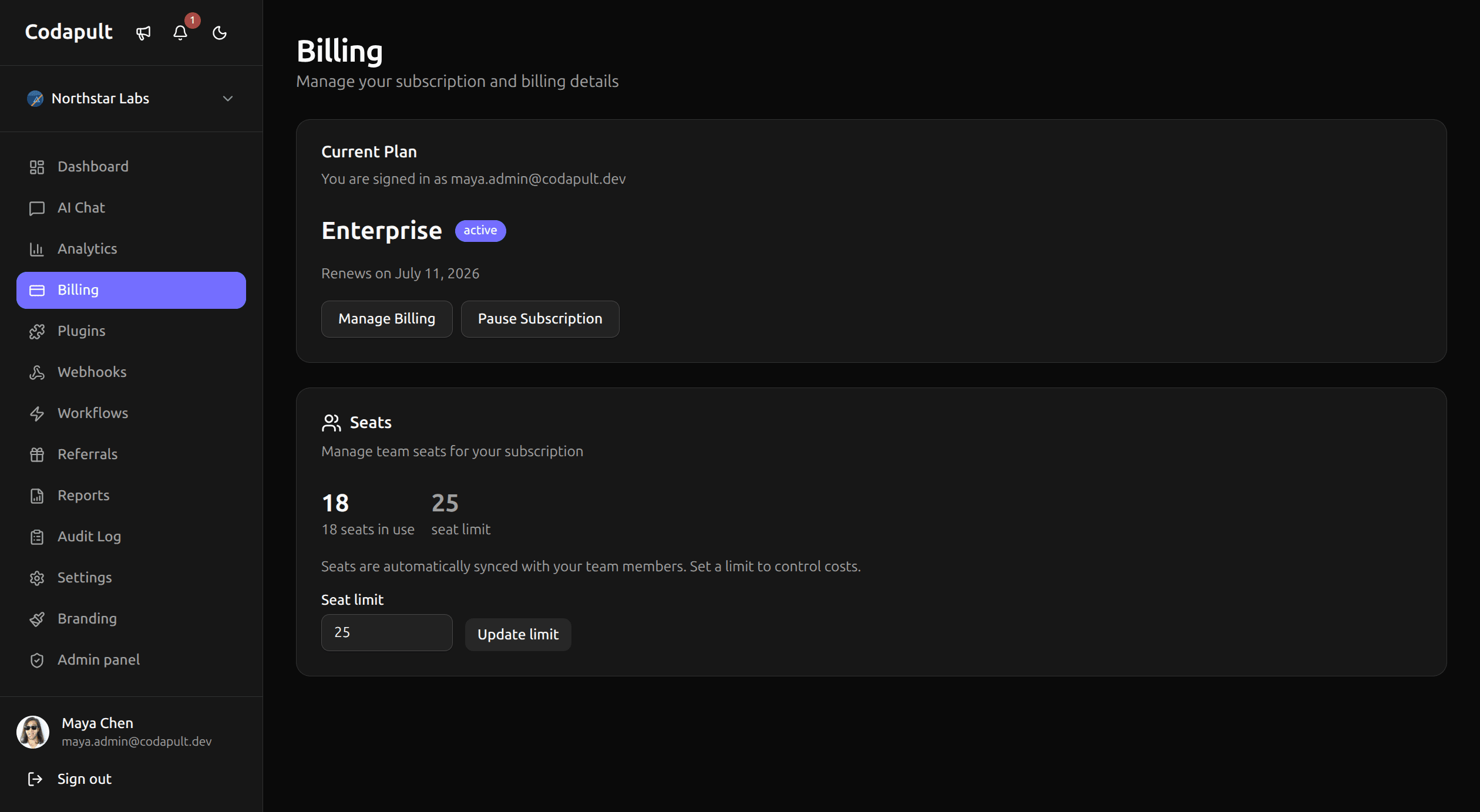
Run through checkout with a Stripe test card — 4242 4242 4242 4242 gives you a clean success. Then check the billing page in your dashboard; the subscription should show up as active. If it doesn't, that's almost always a webhook problem, not a Stripe problem — check that stripe listen is still running and pointed at the right port.
Afternoon: Deploy
Connect the repo at vercel.com — it auto-detects Next.js, so the defaults are mostly right. Worth double-checking anyway:
| Setting | Value |
|---|---|
| Framework Preset | Next.js |
| Build Command | pnpm run build |
| Install Command | pnpm install |
| Node.js Version | 24.x |
Add your production environment variables under Settings → Environment Variables:
TURSO_DATABASE_URLandTURSO_AUTH_TOKENfor production Turso — orDB_PROVIDER="postgres"withDATABASE_URLif you're going that route insteadBETTER_AUTH_SECRETandBETTER_AUTH_URL, set to your production URLNEXT_PUBLIC_APP_URL, same production URLSTRIPE_SECRET_KEYandSTRIPE_WEBHOOK_SECRET— live keys this time, not test ones
Push to main and let Vercel build.
Once it's live, go back to Stripe and add a second webhook endpoint pointing at https://your-app.com/api/webhooks/stripe, subscribed to the same four events. Copy that signing secret into Vercel too — test and production webhooks are separate, and it's an easy step to forget.
Evening: Make Sure It Actually Works
curl https://your-app.com/api/health
# {"status":"ok","timestamp":"..."}
That confirms the app is up. The real test is walking through it yourself: sign up on the live URL, subscribe with an actual card, check that the dashboard reflects the active plan.
If all of that works, you have a live product. Send the link to someone.
What You Actually Built
Working sign-up and sign-in. A real Stripe subscription flow with webhooks handled correctly. A dashboard. A URL that isn't localhost.
The modules you cut with the setup wizard are gone — not hidden behind a flag, actually removed from the codebase. The ones you kept are fully wired in: teams, SSO, and AI chat all sit behind the same adapter pattern as auth and payments, so turning any of them on later is a config change, not a rewrite.
Next
Before you start building the part of the product that's actually yours, it's worth reading the Project Structure guide — it covers where business logic is supposed to live, how the adapter pattern is put together, and how the config system splits across .env.local and src/config/env.ts. Ten minutes there saves you from fighting the structure later.